

Intro and Musings
I’m still working out Part 4 of my Citizen Developer series, so in the meantime, I’m going to start highlighting some of my projects that I feel really bring some value and help to show the quality of tools you can build with my dev skill as your partner.
Enter Cert Generator
Spinning up certs, especially for someone new to the process is a confusing and error-prone experience. Cert Generator aims to fix that, and make the issuing and tracking of certificates second nature. Plus, spinning up a Windows CA is a real PIA if what you’re looking for is some sort of simple yet feature rich centralized certificate management.
Note: Cert Generator is built on a strong foundation of application security so you must enable at rest encryption before you can use all the features. Every time the container is restarted you will have to unlock the database after logging in. Ensure you store the backup key someplace secure.
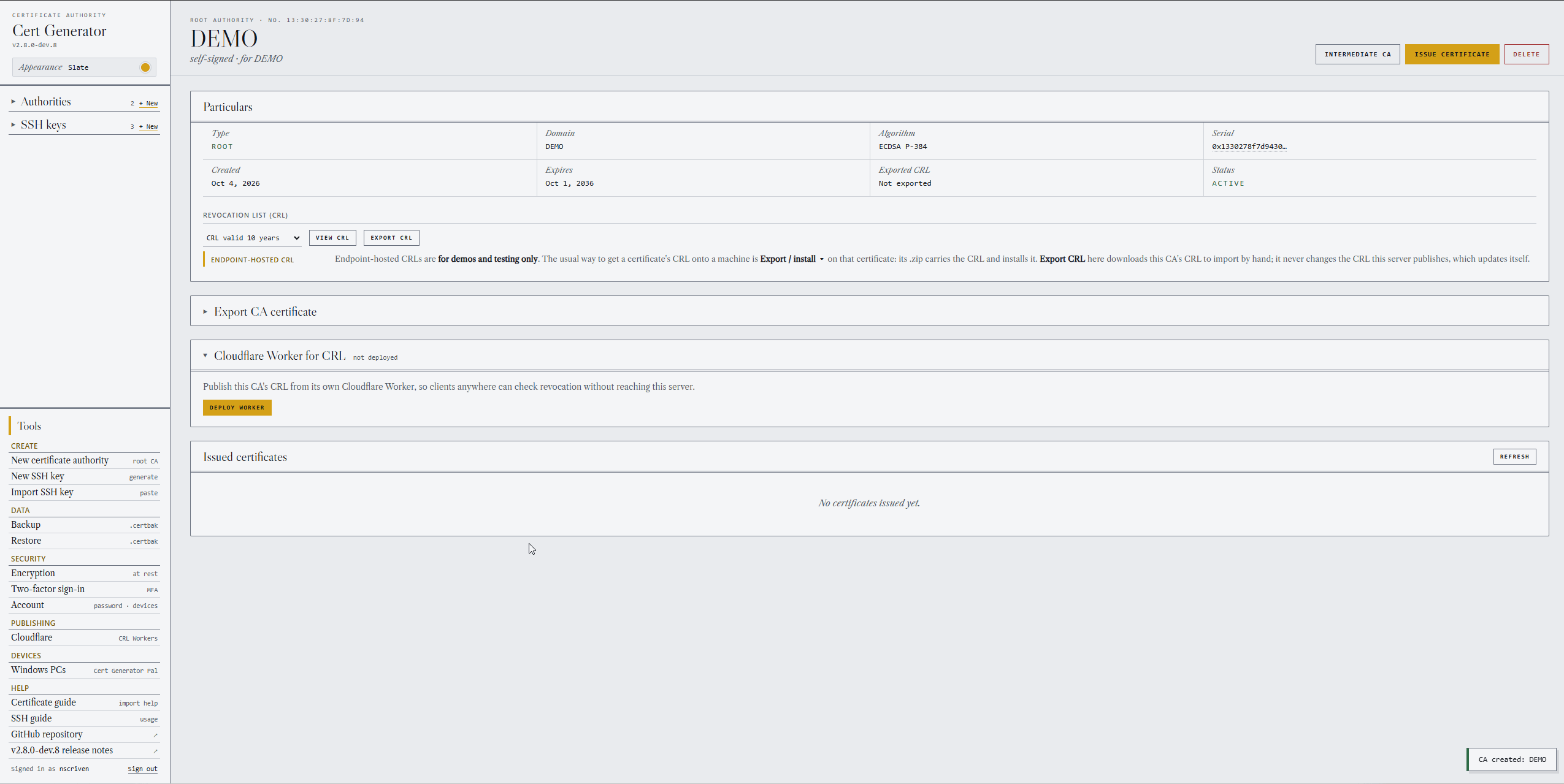
Here on the main page we have the main configuration area. Once the CA is created, let’s click issue certificate.
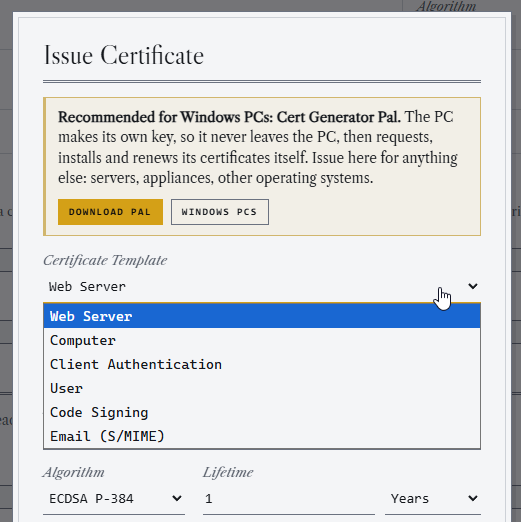
Right away we have the options for all of our standard templates, with multiple encryption types.
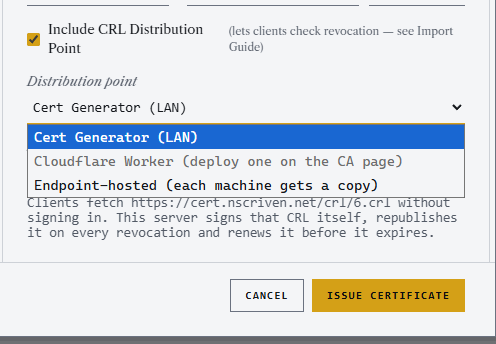
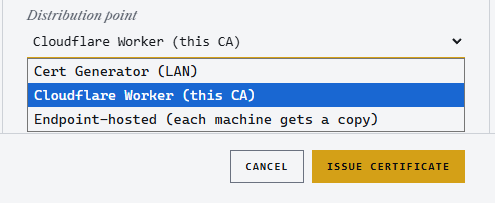
We also get three options for a CRL distribution point.
The docker container itself (must have LAN connection)
A Cloudflare Worker (reachable from anywhere)
Endpoint Hosted (a script that sets up a local listener, really for demos/testing)
You’ve Got Issues
Once it’s issued you can export it easily. If the cert has never been installed, you can opt to also include the root cert along with it.

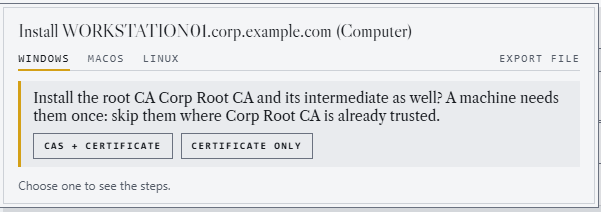
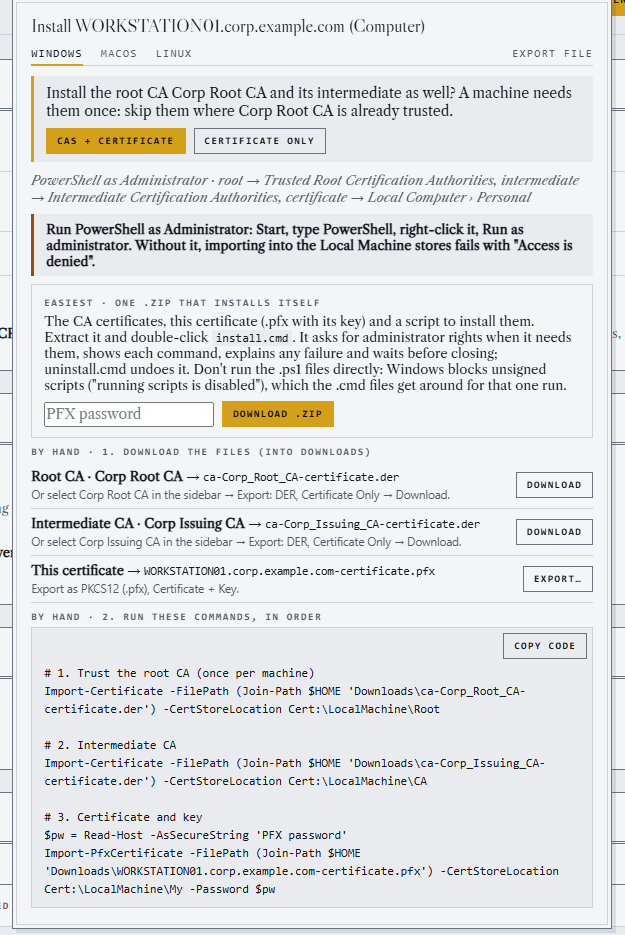
Issuing the cert is one thing, the cert installs can also be a pain. To help with that you can download a zip with the certs and a script to automate the process, or follow the process manually. As a computer cert must have the private key included, a password must be included before you can download the zip. The password is for the PFX, not the zip itself. Copy the zip down to the target machine and run the cmd (not the PowerShell script) as admin.
Guiding Light
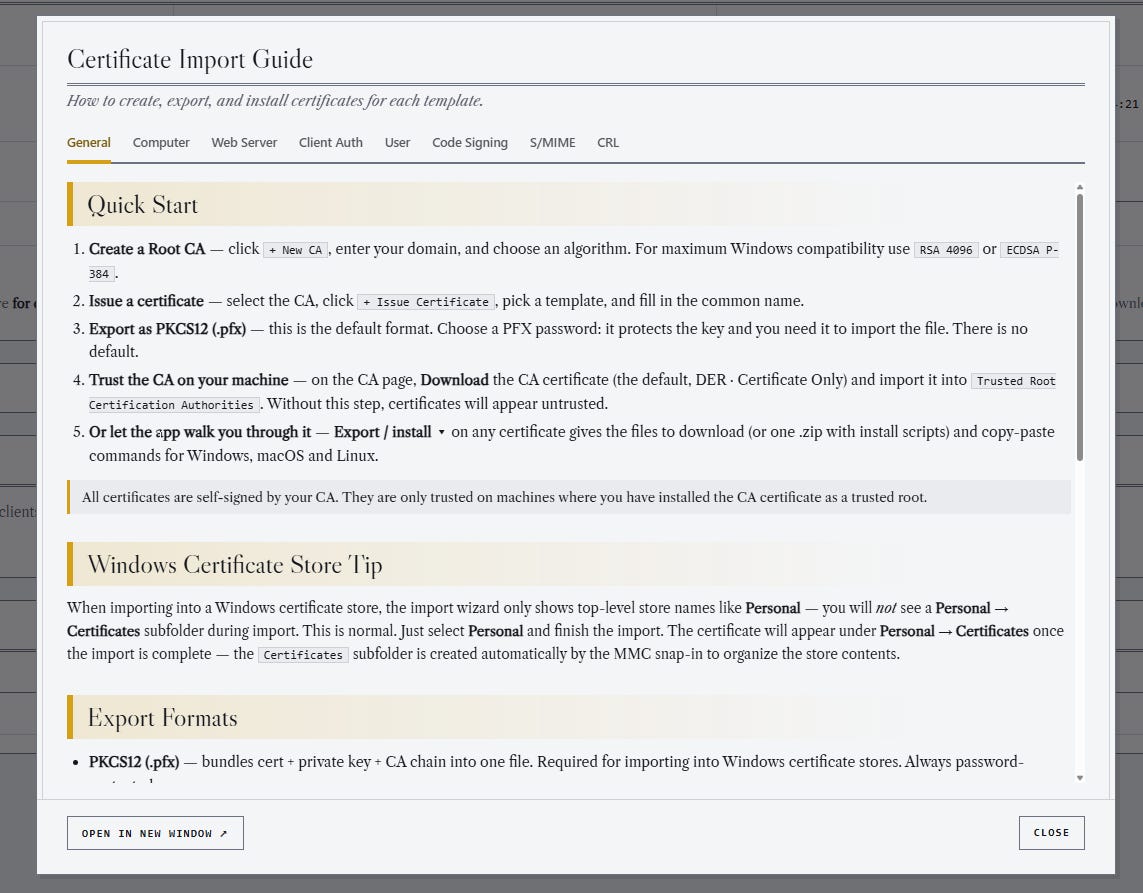
As always, there is a full guide to help you along the way.
Cloudflare Workers
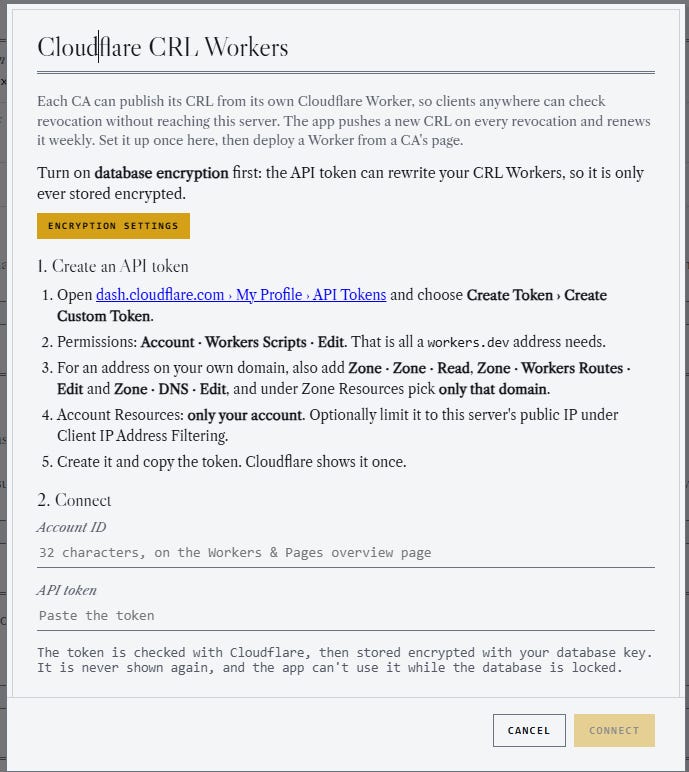
I think I love these little guys. Even with a free account you can spin up these little microservices. And deploying them is very easy with Cert Generator. In your Cloudflare dashboard you will need to create an API key under My Profile/API keys
Under tools/Publishing>Cloudflare, enter in your account number and API key. Edit the template and change everything to edit. Once you get the API key keep it secret, keep it safe. You’ll enter it in Cert Manager shortly.
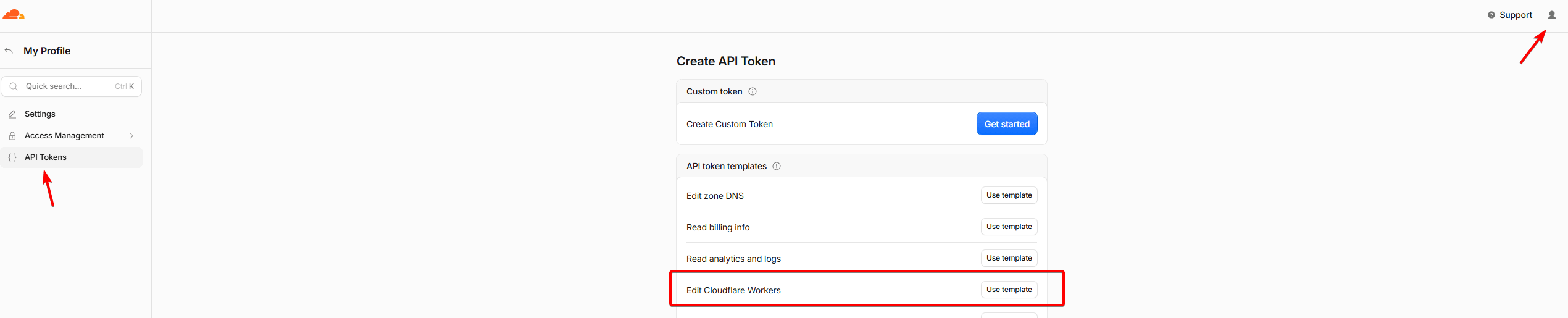
On the right hand of this screen You’ll find the account details, you’ll need that as well.
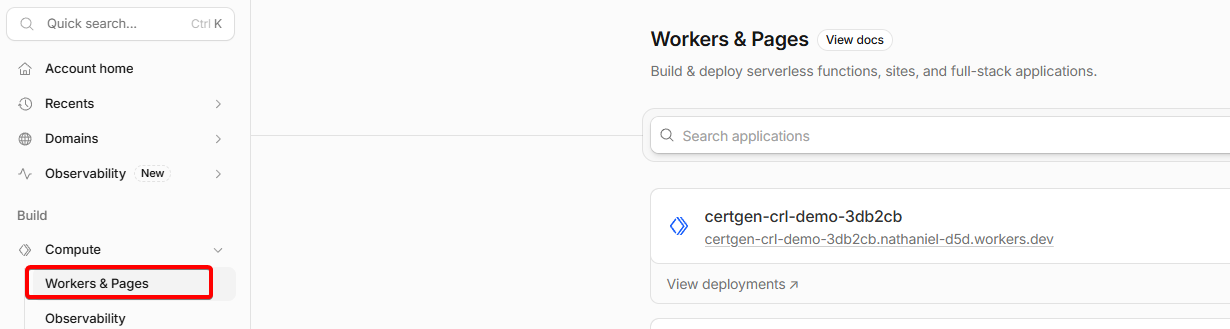
Input your account ID and API key.
Once that’s set, click on Deploy Worker under the CA. Each CA gets it’s own entry. Choose the free domain, or tie it to your existing. That’s it!


Once the worker is stood up, you can then use it when you issue a cert. The CRL is accessible from anywhere, securely.
I’m Not Your Buddy, Pal
So you may have noticed during the cert issue page there was this:
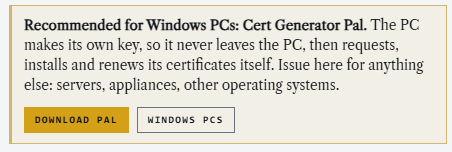
The Cert Generator Pal is your best-est buddy ever. Once you pair the pal to the app (must be over LAN the first time) You can request certs directly from your endpoint! Also, with the mailbox relay Cloudworker you can request the cert securely, from anywhere, without any need to open any firewall ports. Also, you never need to import/export the private key. It’s all done in-app and will also store it in TPM if present.
Note: the pal executable is always stored inside the docker container, not via separate download artifact. You will also not find it in the bound volume.
The server side setting is Tools Devices>Windows PCs. You can set approvals, CRL distribution and enable/disable the remote option.
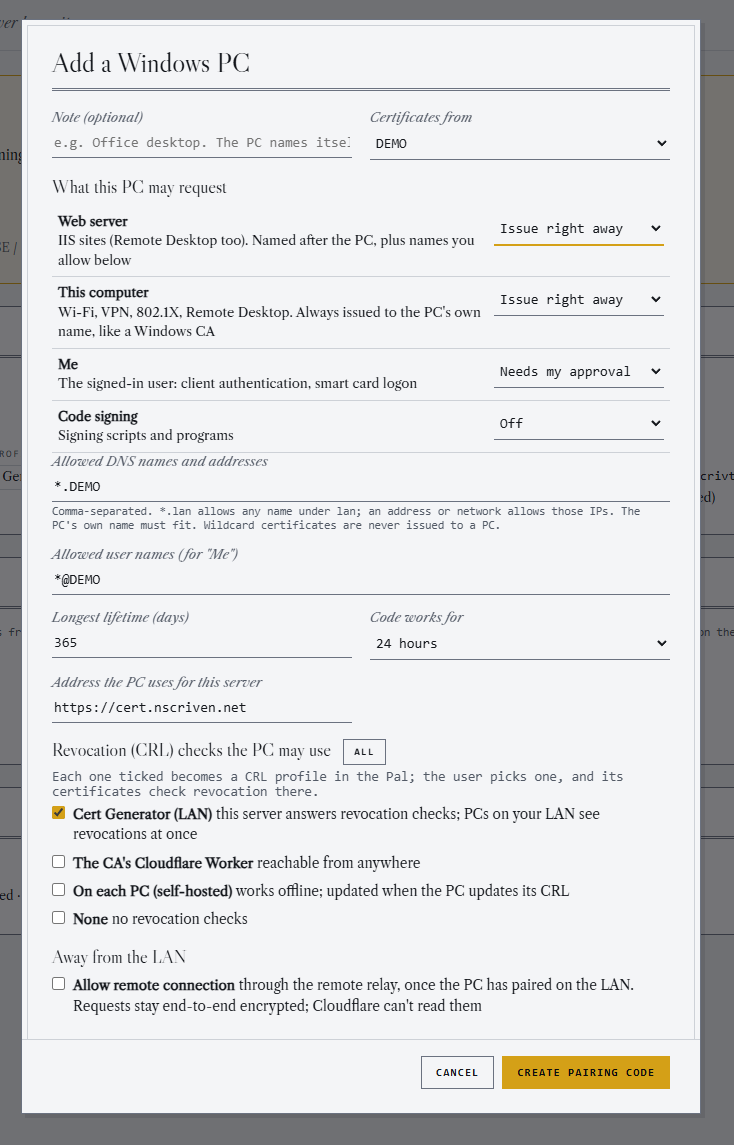
On the PC side, you can have multiple profiles for certs, and changing a cert will back out the installed certs/changes. For example if you wanted to move from self hosted to Cloudflare, it will undo the listener script and remove the installed cert. The app requires no install. You can also see the current connectivity to the cert server and CRL. The Pal can only manage certs issued by Certificate Generator, it is not meant to be an overall management replacement.
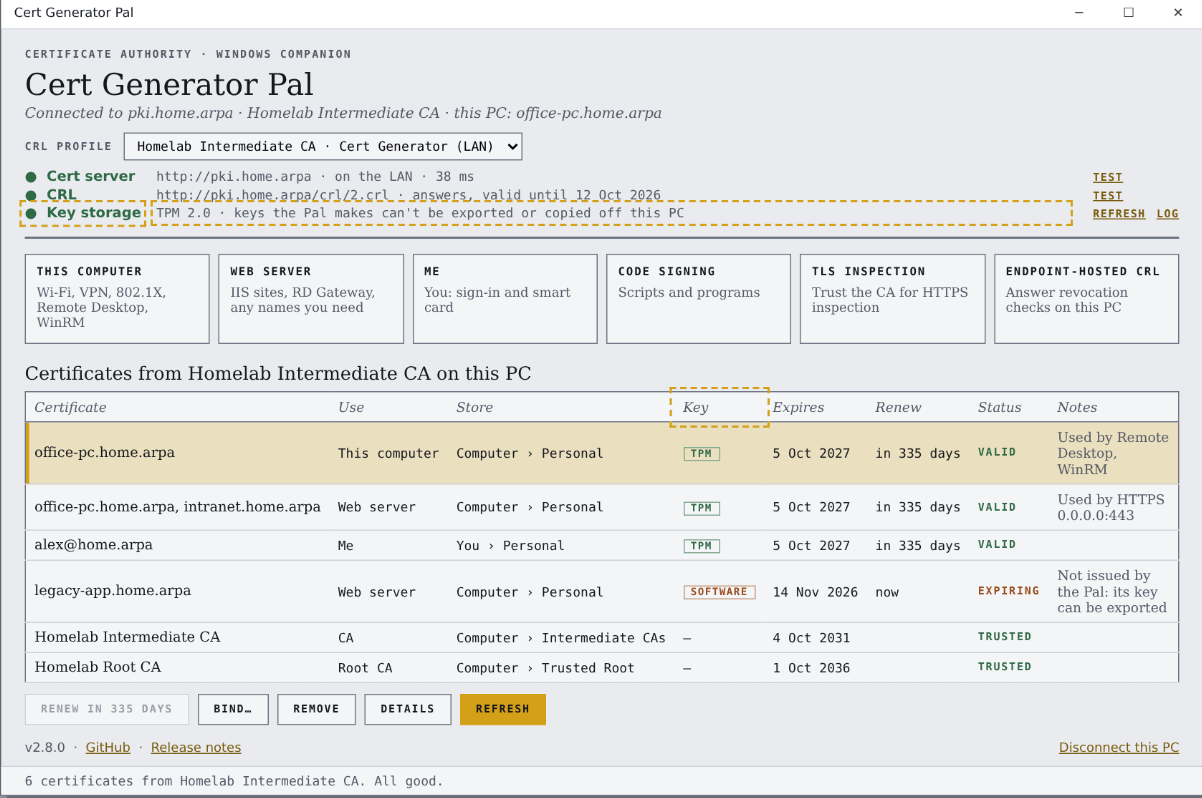
Also, as I’m not a fan of the windows cert viewer there is a cert viewer. The “bind” button will allow you to add functionality to some certs, such as adding RDP support for the Computer cert.
Bonus: SSH Key Generation
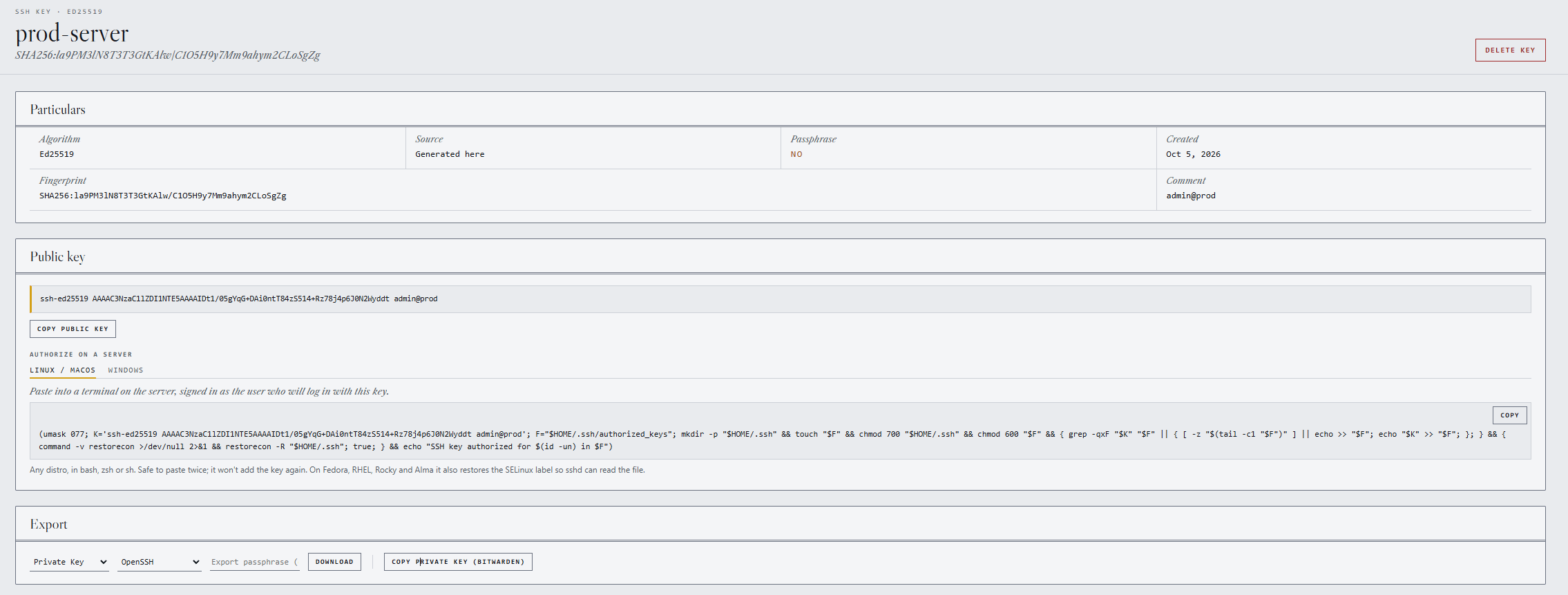
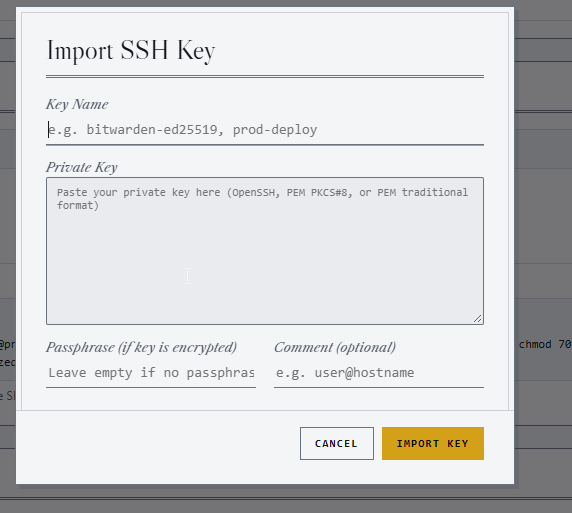
You know what can also be a pain? Generating, installing, and storing SSH keys. We’ve got you covered. You can create, store, and even import SSH keys. And to make the process simpler still, it provides an easy copy/paste script to install the keys.
Conclusion
I think that’s it! So this app took 32+ releases over a month or so and if you look at the release history, you can really see how the development process matured over time after I also developed the dev skill in parallel. Please take a moment to look at the security architecture and do your own due diligence as you would with any OSS project. I’ve done whatever I could think of to make it as functional and secure as possible.
The repo is at: https://github.com/darthrater78/cert-generator
Until next time.