

Intro and Musings
Ok, we’re about to get into it, but first let’s have a chat. Real talk. We’re all pretty damn comfortable when it comes to our long term OS choice of Windows. We know it, inside and out for the most part. Working with files, network shares, navigating the registry etc. Windows is the Cisco of the operating system world, in that we’ve been doing it their way for decades.
Just like with Cisco, the actual underpinnings of the OS has been hidden from you, abstracted away by a happy gui and in the case of Cisco, their proprietary shell. Let me explain further. I was a Cisco guy for a long time, and then had to work on my first Aruba switch. (this was about five years ago, things have changed.) I was totally lost. What the hell? A trunk is actually a portchannel? Tagged/Untagged, what madness is this?
And to top it off, why can’t I make a L3 Routed port with “no switch”? This was the one that threw me. Then my mentor Igor tells me “You’ve been doing things the Cisco way, here’s how it actually works.” The “routed port” is simply a SVI tied to a “hidden/reserved” vlan with bpdu filter turned off. Cisco just made it “easy” by obfuscating the logic to “no switch”. This was huge for me, eye opening.
My other equivalent is VMWare. Lots of obfuscation there too. When I started to use Proxmox, all of a sudden I felt “closer” to the hardware, and things made way more sense. It was the removal of the veil, an opening of the black box they want us in. The less you know, the more they can steer you where they want you to go.
Now the reason for this little screed is that I want you to be aware of this, of what power and new understanding Linux is going to give you. But understand this.
”With great power comes not knowing what the hell you’re doing at first, coupled with a fair amount of frustration.”
This is likely new to you, you will be uncomfortable, you will be frustrated, at some times you’ll be ripping pissed. Be prepared to challenge concepts you thought you knew, and make compromises for what you need to work. (at least to start)
STICK WITH IT. It’s worth it, and by the end you’ll be a better engineer and technologist for the effort. This will cover some of the things I think you need to know before we get into install and configuration, to attempt to mitigate those pain points.
File(damentals)
Ok, we need to cover some base concepts about the file system. There’s some stark differences from what you’re used to and the first one is how drives are handled. There are no drive letters. No A, no B, no C. (gasp). Join a support group if you need to, but get over the fact that there are none.
Remember that Linux is a system of files. And all files originate from root. Even drives. And root is: /
That slash is the core of the OS. Watch the below for the overview.
So, for example let’s say I’m at the terminal and I want to get to my Downloads folder. I would use: cd /home/nathaniel/Downloads/
Note that I have the root at the beginning of that command. If I omit it:

This is a mistake I make more often than I’d like to admit. Why the hell can’t I find that file?! Oh. Forgot to add root. Now there is a use case for when you don’t have to add root and that’s our friend tilde! ~ is the alias for “home” and that includes root.

It’s crazy important to note the case sensitivity. It matters.

Now if you’re already hyperventilating about the terminal, relax. A modern DE like Plasma greatly reduces the need to be in terminal, but to ignore it completely is foolish. It’s absurdly powerful, and you should get some time in it. I’ve covered this in my docker post, but here’s some basic commands.
pwd : where am I right now?
ls -la : list files where I’m at (or pointing to) and put them in a list and show
permissions/hidden files
cd: change current directory focus (don’t forget root!)
tab: not a command, the key. This is the unsung hero of Linux, autocomplete! You can
also use this to show all matches in a directory


du -h -d[integer] : what’s the disk usage for where I’m at, break it into readable
numbers, and how deep in the directory do we want to go?
So some examples: if I do du /home/nathaniel/ it will vomit out every file in the directory, including folders and subfolders. And the numbers won’t be easy to read.
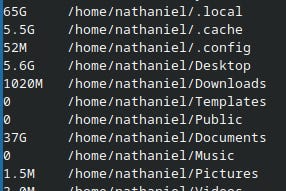
If I do: du -h -d0 /home/nathaniel/ It will give me the space in readable numbers and the overall size of the folders.

And using d1:
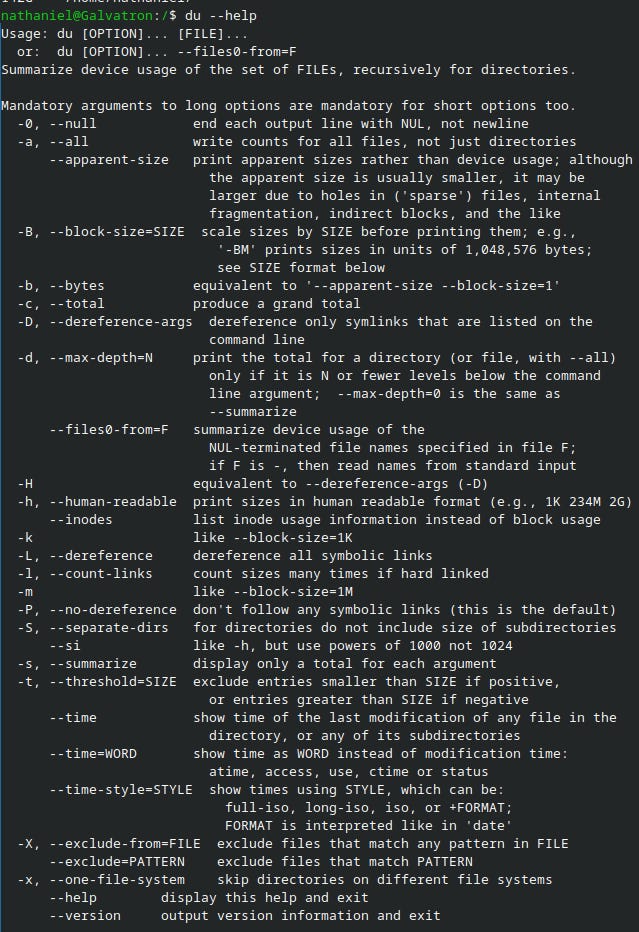
Next, double dash help. (dumb substack shows it as one long hyphen)
After any command use double dash help to bring up the man page.
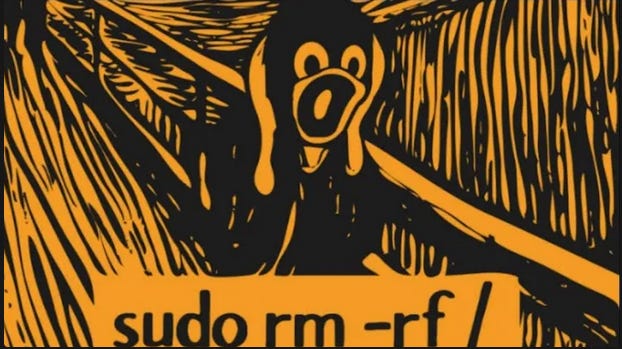
rm -rf: murder (delete) everything you tell me to, do it recursively, and force it. That little joke that’s the cover image of Part1? Yea, if you sudo that command, and simply do “root” you’re done. Bye-bye every file on the disk. And terminal has no recycle bin.
I warned about this in my Part2 about docker. ;)
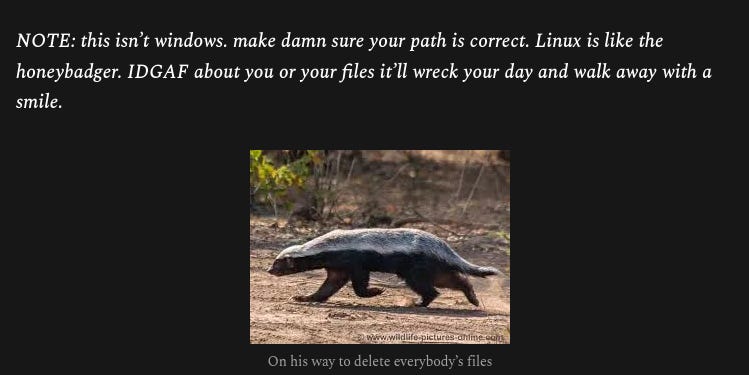
Let’s finish with….
sudo: Look at me. I’m the captain now.
Your first user will be an admin, which puts you in the sudo group. Think of it as a more effective UAC in Windows. It is god mode in a command. Anytime the DE pops up asking for your creds, that’s sudo being invoked.
If you try and do a command in terminal that requires admin rights like dnf update, it’ll say you’re denied if you didn’t start with sudo.
With great power, something something.
Ok, let’s wrap this section up and we’ll talk more about mounting drives in Part3.
MSI, EXE, and BAT oh MY!
Let’s talk about installing applications. Those three extensions are now worthless to you. Yes, yes, WINE, (Wine is not an emulator)) we’ll talk about that later.
Windows has this “scavenger hunt” aspect to applications that we’re all just used to. Installing applications on Linux is so much simpler. Much like docker and the container repos, there are software repositories that we can just pull applications from. No hunting required. Let’s say I want to install “btop” which is a fabulous terminal task manager.
Let’s go to google, search for btop and then let’s not do any of that.
Instead, go to terminal and simply: sudo dnf install btop


Ok, let’s type “btop” into terminal now.
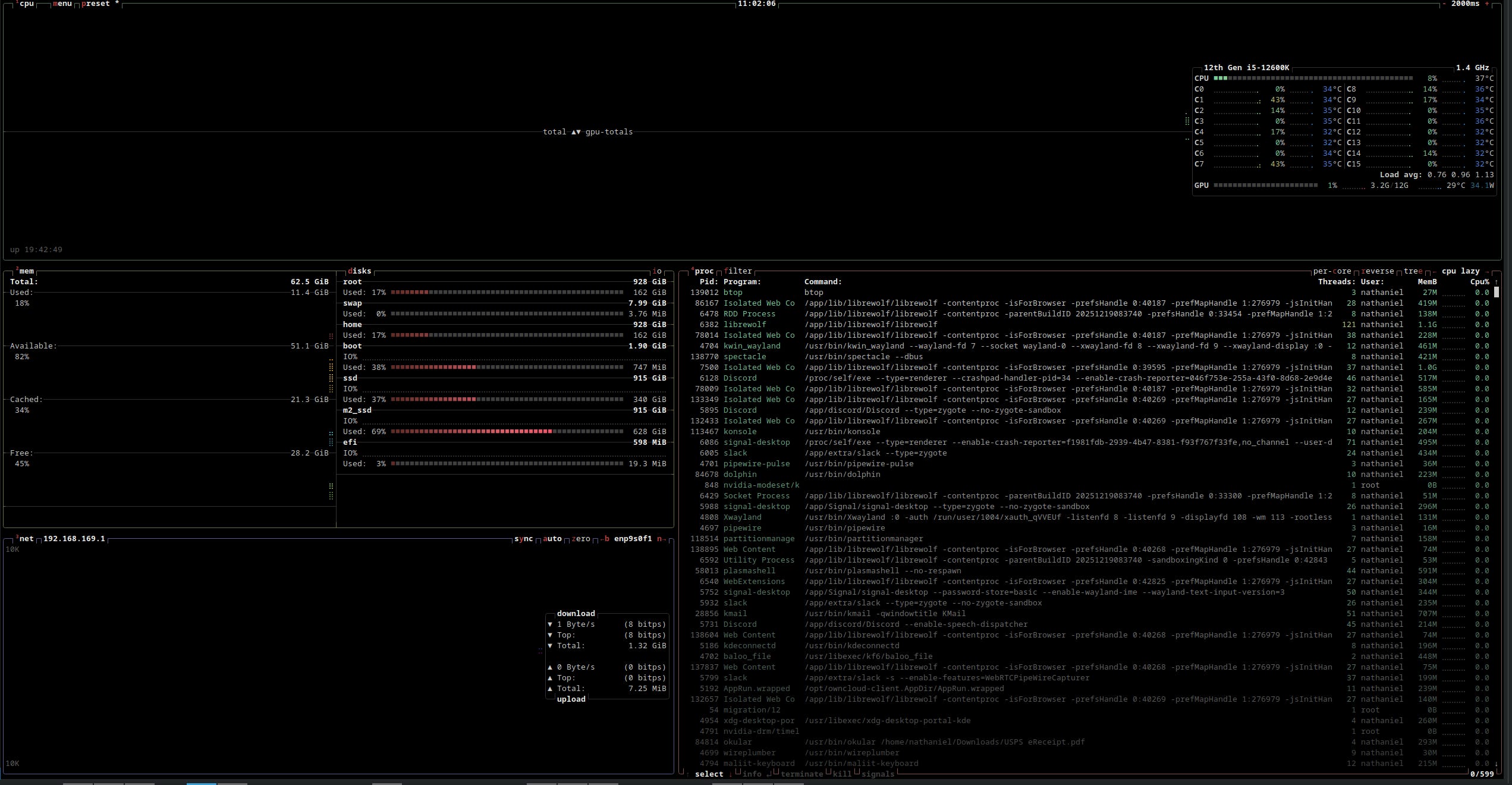
The first time I saw this method of installation, my concept of reality shifted just a bit. I don’t have to hunt for files? I don’t have to click “next” 10 times? Incredible. But not every application is in the default repo. Take docker for instance. With docker you actually add their repo to the OS and then you can install via terminal. And because the repo is present, updates to the non default applications happen through this method as well. Wild stuff.
About that command “dnf”. It’s the modern replacement for “yum” and manages installs and updates. Debian uses “apt”.
Dnf is nice because it collapses update and upgrade into one command, dnf update.
Apt is split into update and upgrade. The logic makes sense for the most part, install, update, remove.
If there are releases you don’t want, (I’m looking at you, Docker 29) you can exclude them from the update. For example:sudo dnf update --exclude=*docker-*,containerd*
Now, there are exemptions to even this. Some applications can be downloaded as a whole file as .rpm files. (Debian uses .deb) Those use the local package manager to install. They are outside of the repo framework though, so will not get updated with everything else. It’s more manual of a process.
So while all this is great, there is an enormous caveat to be aware of.
Dependency Hell
When you install an application you also need its dependencies. Other files it need to run will be present too. Let’s take a closer look at btop. The package manager is telling you the extra files that it needs from the repo. The problem arises when a required dependency will break an existing application because it’s older or newer than what’s there. It’s a shared library, so this can be an issue. Or a certain kind of hell, I’m told. This is one reason why docker/podman is a thing. The applications and their dependencies are abstracted away into the container so it’s a non issue.
Windows doesn’t rely on shared libraries and has other file strategies that largely avoid this issue, but was a problem in the past with “DLL hell”.

Oh, SNAP
One of the solutions to this is SNAP (Ubuntu) and Flatpak (Fedora). These are containerized versions of applications that solve for the dependency issues. They are little sandboxes of happiness that keep the applications sequestered away and functional.
The main reason why snaps are a dirty word is that Ubuntu has a policy of auto-updating. Oh, you don’t want that snap updated? Tough shit it’s already done. You can defer an update to about 90 days from what I’m reading, but still. Canonical also owns and updates the snap store. Corporate decisions, remember?
Flatpaks however, are completely user controlled. We can still download apps from within the OS via the Discover app and you can look at the store externally at https://flathub.org/en. The flatpak store is totally community owned and curated. The interesting thing about flatpaks is that they are supposed to to be distro agnostic. In Fedora, the flatpak management/install tool is built in. You can install it on other distros like Ubuntu to get some control back.
There’s more nuance to each method, these are the broad strokes.
While many, many, apps you use today are available via Flatpaks not every one is a perfect fit due to the sandbox nature. We’ll get further into this in Part3.
Conclusion
I think that’s the bare minimum we need to go over before getting into the install. There’s other things I want to bring up, but I think it makes more sense to show in context as we go.
Until next time.