

Intro and Musings
I’m going to keep this one short, I’ve already had a lot to say in the previous parts. We’re going to get into the install and some nuance to start with. I chose Fedora for reasons I already outlined, but if you want to use a different distro like Mint, that’s fine. As long as you use Plasma (KDE) as the DE, about 95% of what I go into here should be covered.
And don’t forget, Fedora upgrades its version every six months. KDE upgrades every quarter. If you want a lower tempo, go to KDE Debian, or Mint.
Note: Mint Or Debian will just have the default KDE. Any third party repos and the flatpack infrastructure will need to be installed manually.
Ok, let’s go.
We’ll Do It Live!
Once thing Linux DE distros are really good at is the live install. Basically, you can boot to the ISO and get a fully functioning DE environment to poke around in. It all loads from USB (or if you want to party like it’s 1999 a burnt disc) and into memory. It doesn’t involve your primary boot disk at all. It’s a great way to spend some quality time before making a decision. You can test out different spins this way as well if you like.
You can use Rufus, Balena Etcher, or the tool Fedora makes themselves. Both the tool and ISO can be found here.
Install And Setup
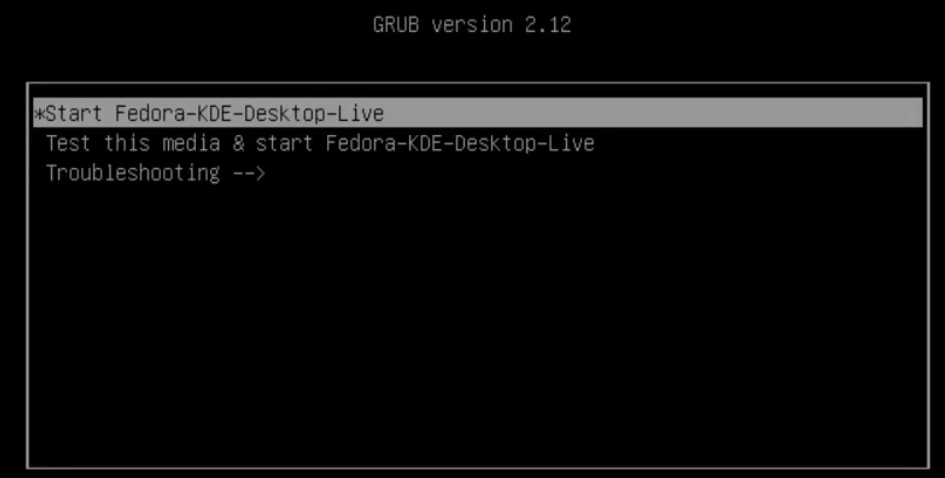
When you boot to USB, you’ll see this. Pick the first option.
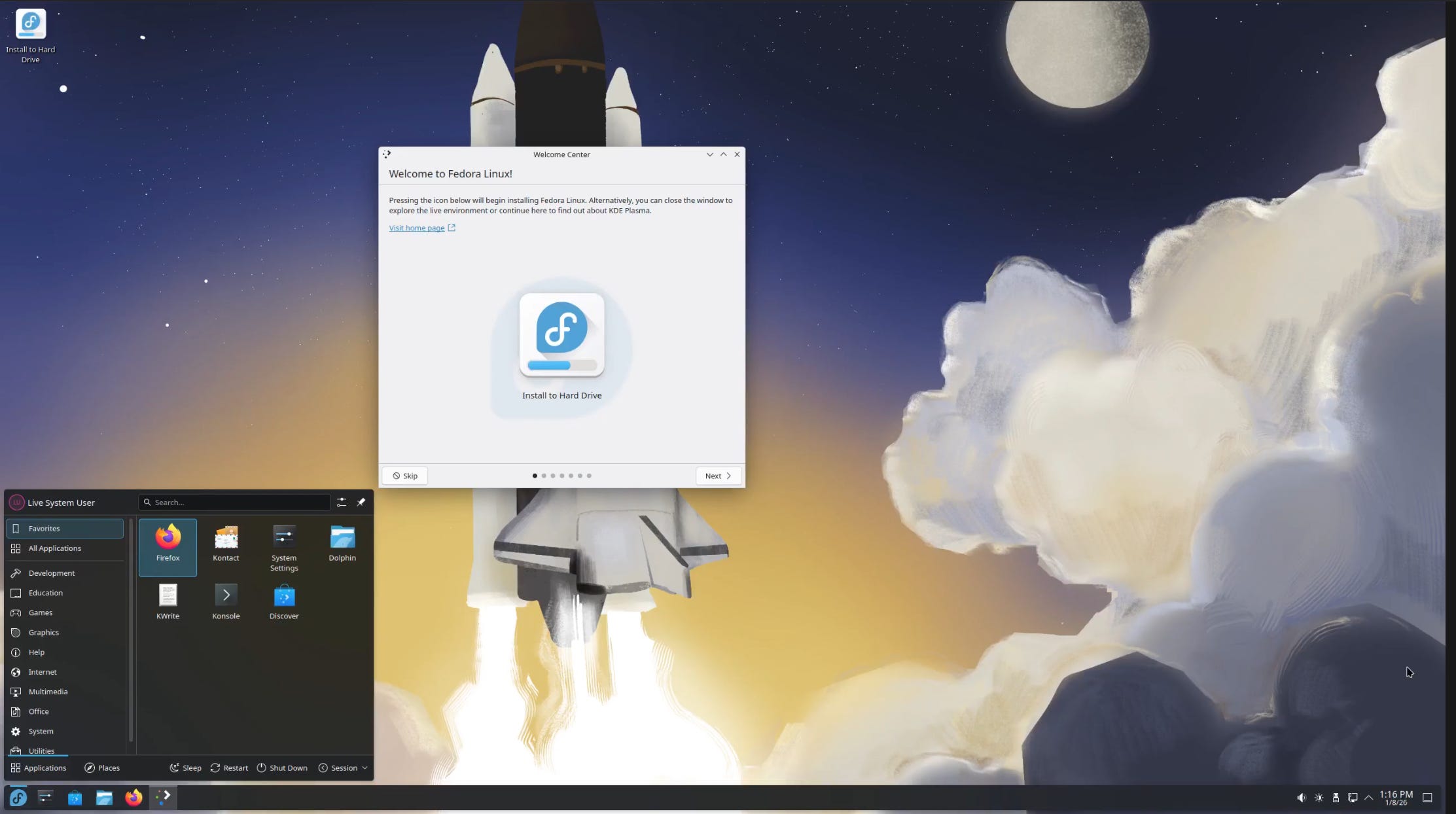
When the Welcome Center pops up, click on “Install To Hard Drive”. Don’t proceed through the Welcome Center just yet, we’ll do that after install. Usually something like this is a waste of time, but not in this use case.
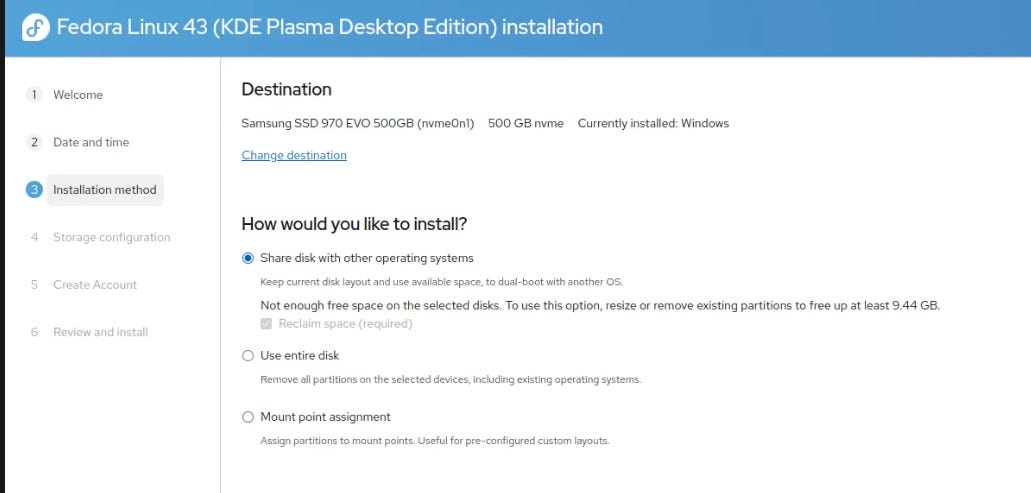
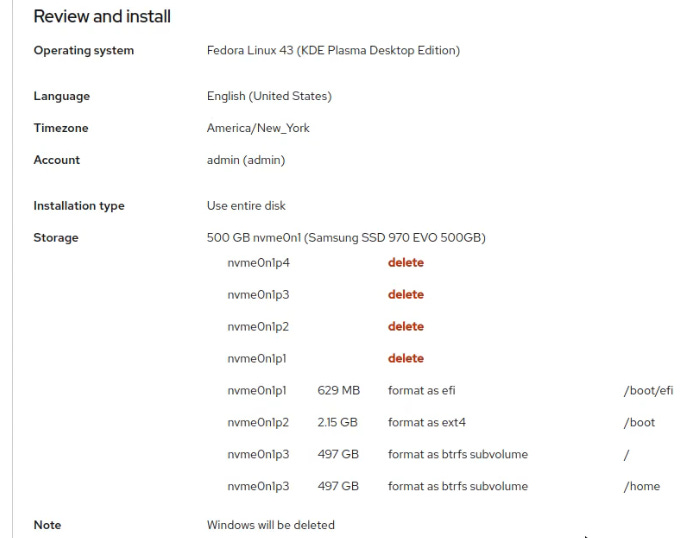
Onto Step 3. Some people like to dual boot, not me. Hot take, make the full commitment and “Use Entire Disk.” This is of course, destructive so ensure files you want are backed up first.
I would skip disk encryption on the next step unless you really have a use case for it.
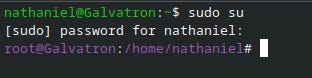
On Step5, make your user account here. I would avoid making a root account. Your user will be an admin in the sudo group you can do everything from there. If you have a burning need to run as root, you can always do sudo su to elevate to root when needed.
On the review, you’ll notice that the default for home and root are “btfrs.” This is great as you can leverage snapshots to roll back the OS when needed. It’s a great little file system. It is a bit more write intensive than ext4, so it’s recommended that ext4 be used for secondary drives.
Install!
Welcome!
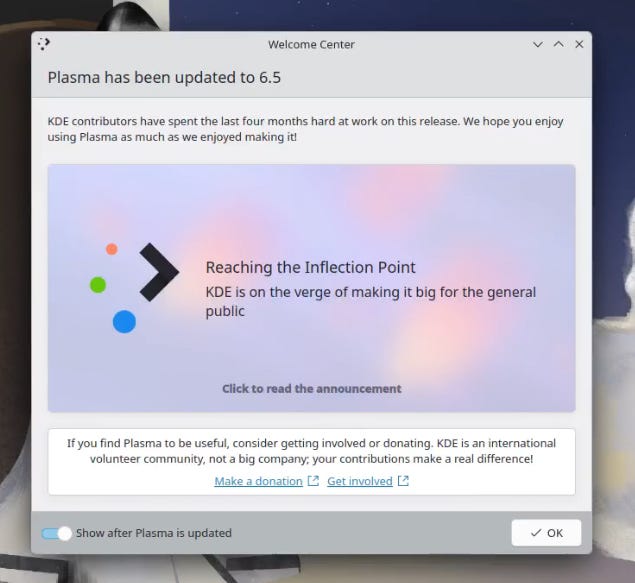
Once back up and logged in let’s work our way through the Welcome Center.
Go ahead and next your way through the prompts until you hit this screen. You absolutely want third party repos, so yes to this.
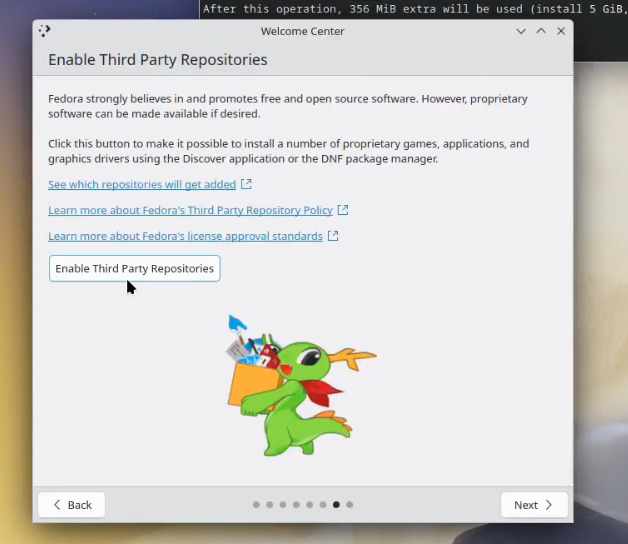
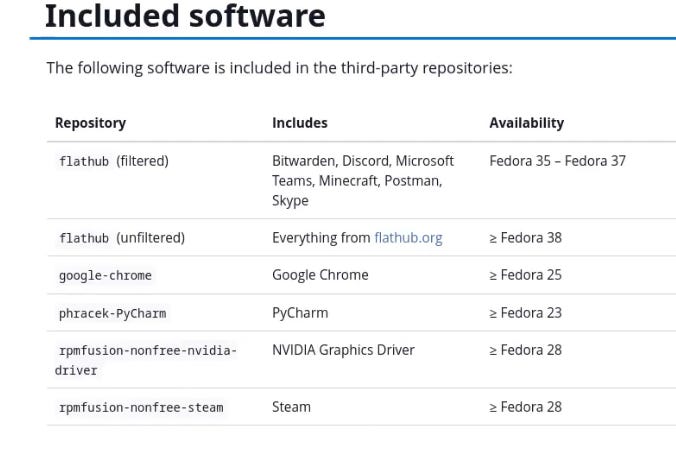
Feel free to click the link, but here’s what this entails. My understanding is that with KDE, this is a bit of an “easier” button.
After this, you’ll see “Discover” pop up about updates. This is the next thing you need to do. It’s a biggin’ so get going.
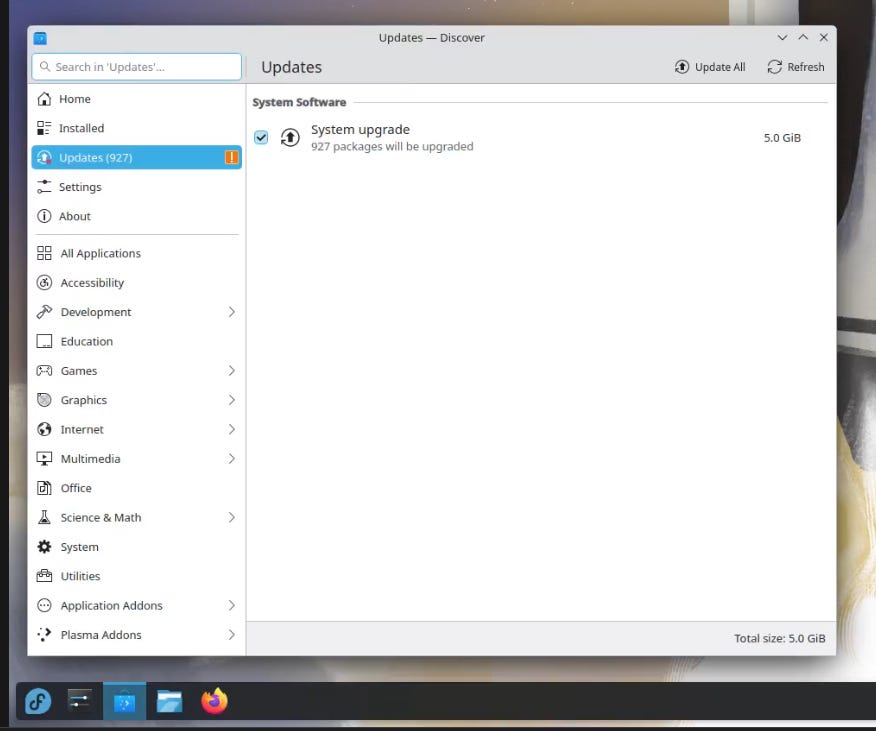
The update process apart from the download is surprisingly quick. I think you’ll find everything with Linux is so much faster than what you’re used to.
Feel The G…Force
Next step, let’s get those Nvidia drivers installed! If you’re AMD this obviously doesn’t apply to you.
There’s this useful guide on installing the drivers, but our Welcome Center action already did most of it. Still review it though, especially if you have Secure Boot enabled.
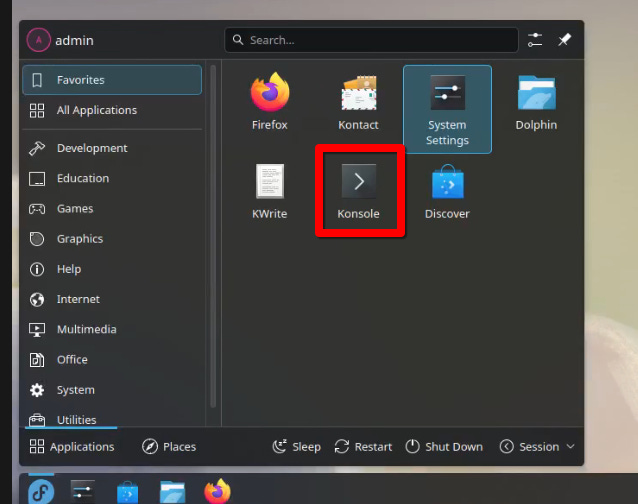
I’m going to assume you have a 2014 or higher card. Open up terminal (Konsole)
and run:
Fun Fact: Man, KDE loooooves the letter K. It means nothing from what I’ve read.
Krita, Konsole, Kontact, Kmines, Kfind, ketc, ketc, ketc. If it starts with K, KDE made it. And honestly, they’re really good applications.
sudo dnf install akmod-nvidia (answer yes at every prompt)sudo dnf install xorg-x11-drv-nvidia-cuda #for cuda and nvidia-smi Reboot.
Open terminal, and run:
modinfo -F version nvidia and the driver version should show.
For a bunch of other details run:
nvidia-smi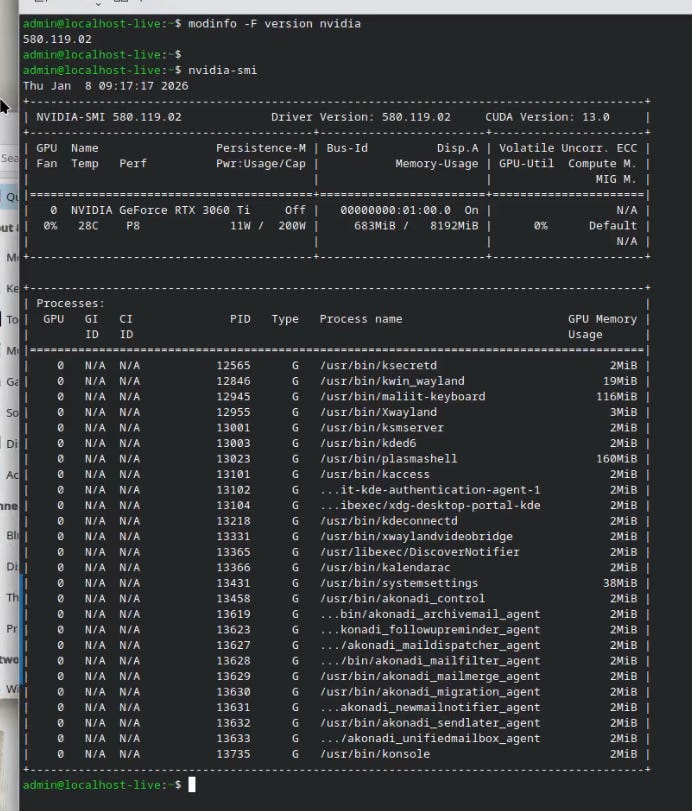
The last thing we’ll do in terminal right now is install the multimedia group.
Note: I noticed while doing this, the file size was zero. It appears as though our third party repo already did this part for us. Awesome. In case you need it:
sudo dnf group install multimediaMounting Pressure
Ok, let’s talk about mounting disks. This process is pretty different from Windows. Let’s take a look at my current drives. “Old” is an internal SSD, and “Fedora-KDE” is a USB drive. The orange symbol means that the drive is unmounted. If I click it, I’ll get an admin prompt to authorize a temporary mount for the internal drive, while USB should just mount.
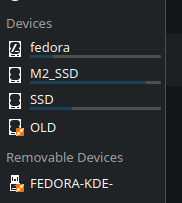
Now that they are mounted, let’s look further.
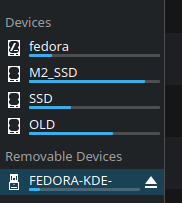
If I navigate to the usb drive and expand the path I get:

Likewise with the SSD:
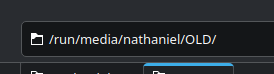
Now for USB this is fine. That drive will come and go. For the internal drive though I want that to be more predictable and also automount. Now there’s several ways to do this. We’ll try to stay out of terminal for this, so we’ll use the KDE partition Manager Tool.
First thing though, let’s create our mount folder for the partition. You may recall in other guides for server based use cases I always use /mnt as the folder. That’s simply a good standard. In truth any folder can be used. For this use case my base folder will be “disks” because that makes sense.
Most of / that’s not the home dir is exclusive to the root user, so you’ll need to open the folder as admin. Yes, you could use sudo to make the folder, but we’re trying to stay out of terminal for this.
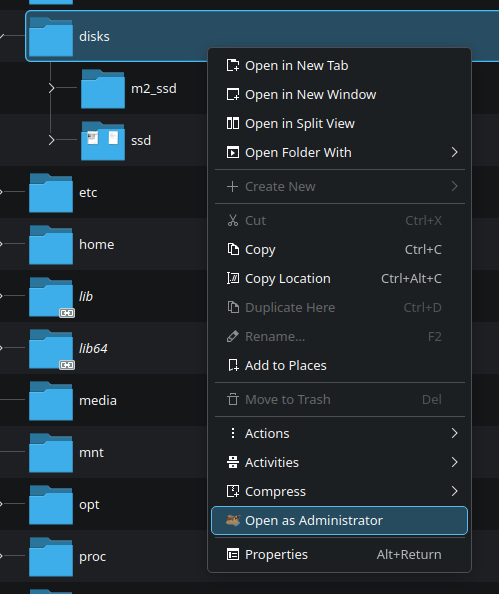
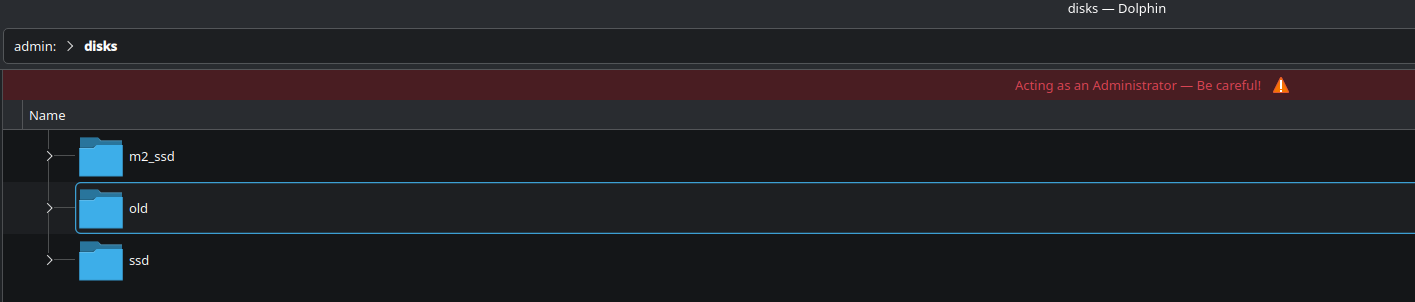
Now, lets open KDM and take a look. I want you to look to the right of each disk, at the /dev locations. nvm, sda,sdb. These are not partitions they are the actual device locations.
If we take a look at the partitions on the right the nomenclature is sbd1, 2, etc. It’s the partitions we’ll mount and not the physical disks. I hope it’s a bit more clear about how Windows obfuscates this process.
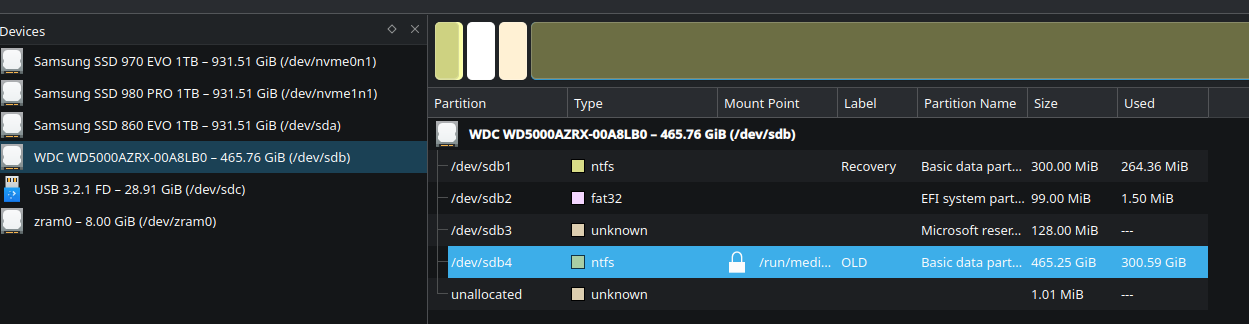
Now obviously this disk is from my previous Windows install and I want to delete and reformat. You can unmount any locked partition by clicking on it.
Note: no action is performed until the end. You can back out or undo at any time before activating the changes.
Ok, I’ve deleted everything.
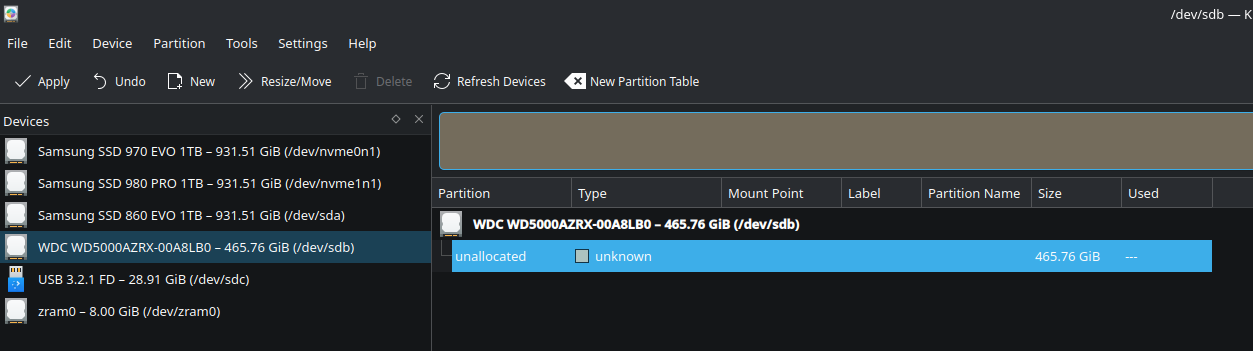
Click on “New” and create the partition. I’m using ext4 for my extra internal drives. I also change the permissions to “Everyone” for ease of use. Hit ok, and then “apply.”
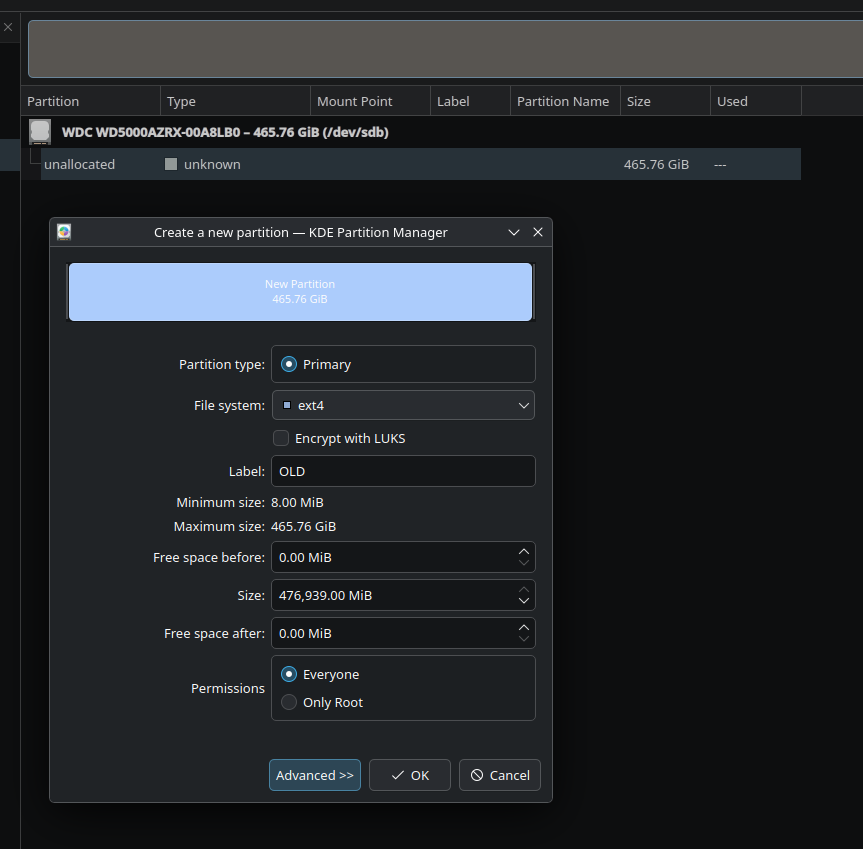
Sanity check!
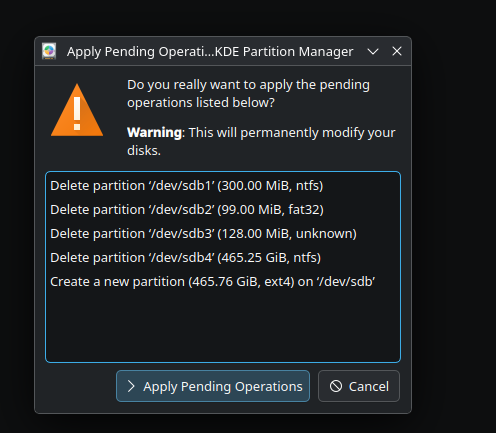
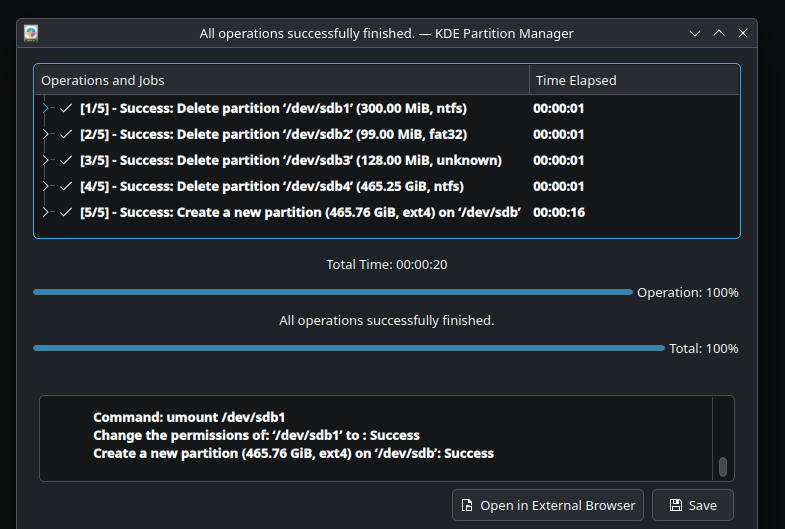
Now we have bright shiny new partition. Almost done. Right click the partition and choose “Edit Mount Point.”
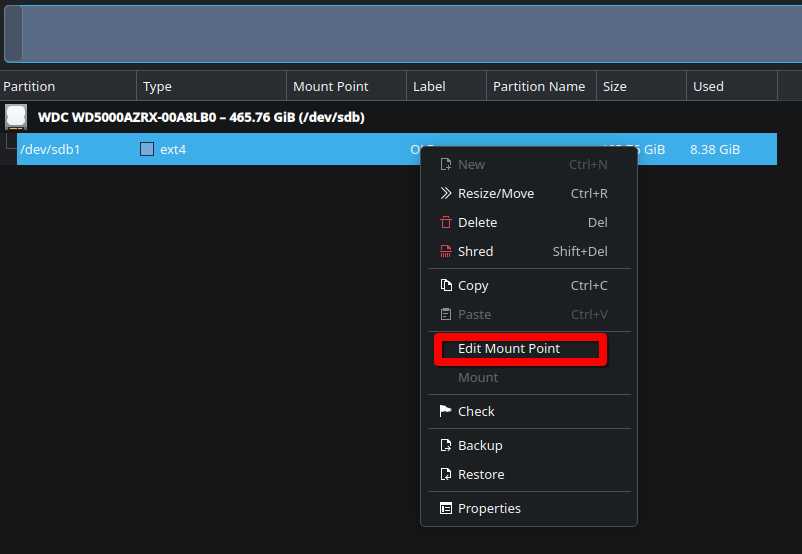
I’d recommend using UUID as the ID, as it will never change. Change “Pass Number” to 2, all other settings can be left at default. Hit “ok.”
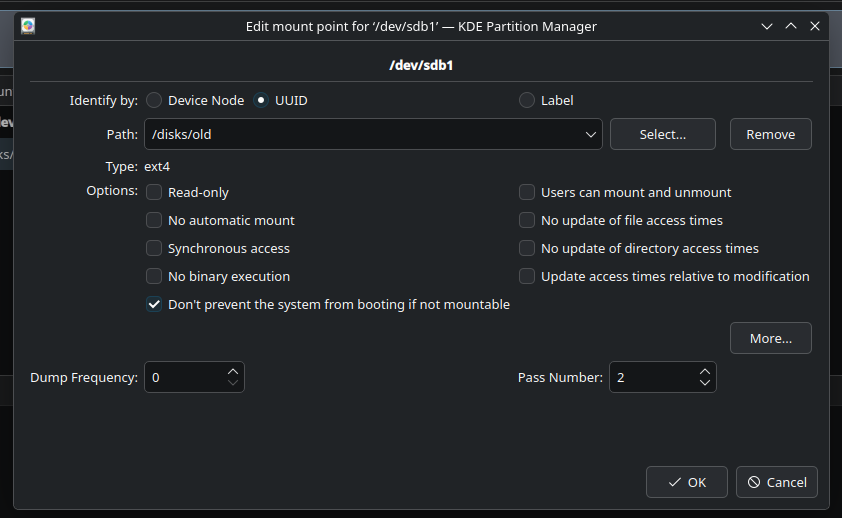
Look at that! Our old friend fstab. We’ll review that next.
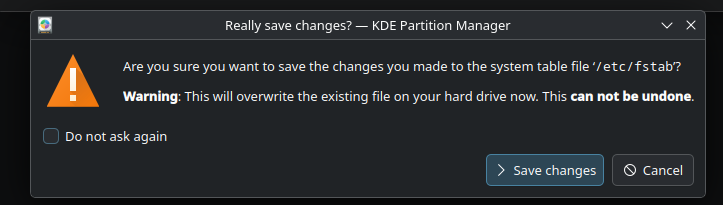
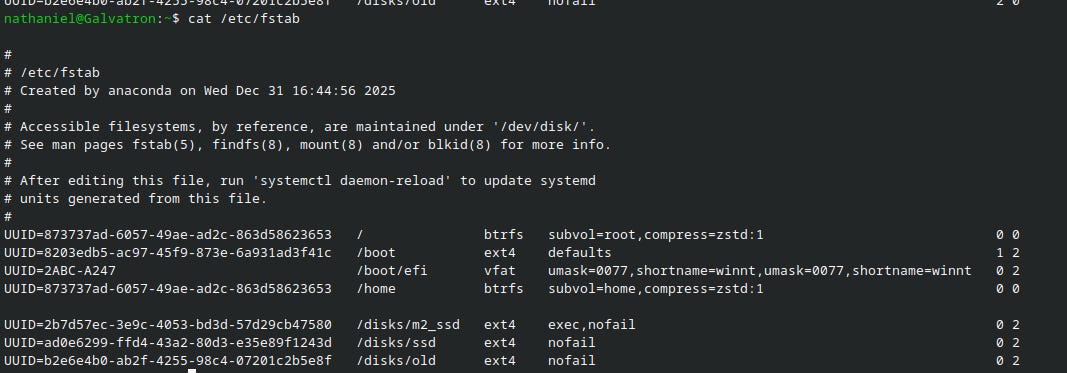
After this is done, right click on the partition and mount it. The mounting should now persist after reboot. Let’s review fstab. We can see on the final line, there’s our new drive. Linux will use the this file to mount these drives at each boot or if you invoke mount at terminal.
Explore!
That wraps up what we need to get a functioning install and mount our extra disks. In the meantime explore this new OS! It’s a lot of fun to poke around and find all these new features you always wished Windows had.
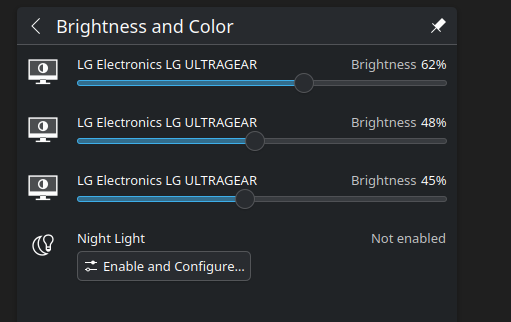
Dynamic monitor dimming? Feature!
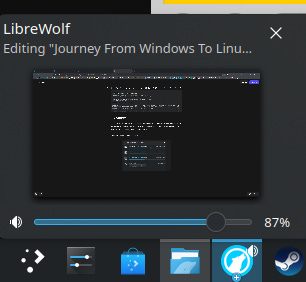
Volume controls in taskbar tabs? Feature!
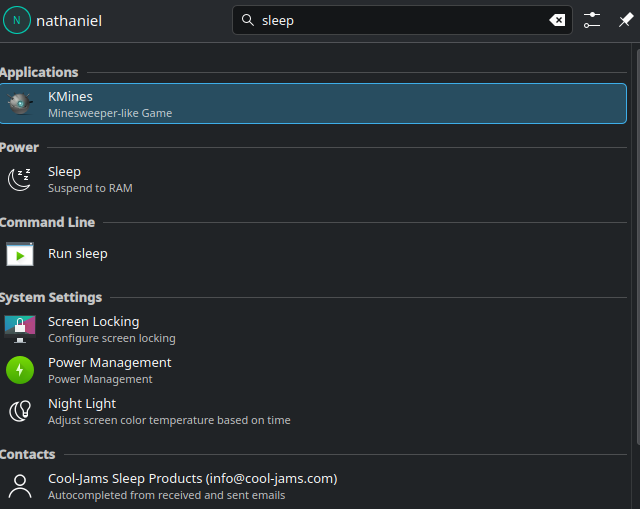
A system and application fuzzy search feature that actually works and returns results without ads or other unrelated nonsense? FEATURE!
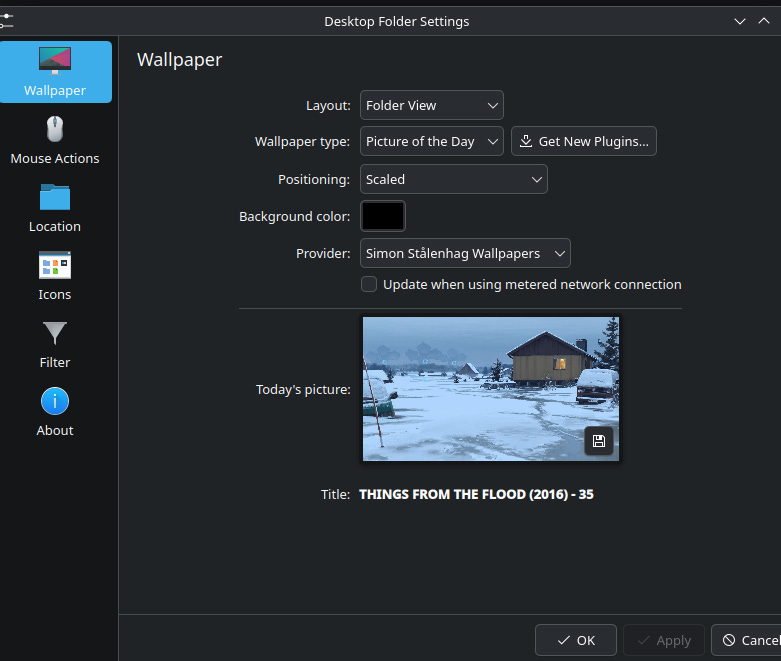
Badass wallpaper plugins? Feature!
And so much more.
Conclusion
What a ride. The next part will focus on applications. Flatpaks, Windows equivalents/workarounds and other neat OS stuff.
Until next time.